
SS IPTV on an LG TV: Cast From Your Android Phone
What actually works on an LG set, from the app in your pocket to the picture on the screen.
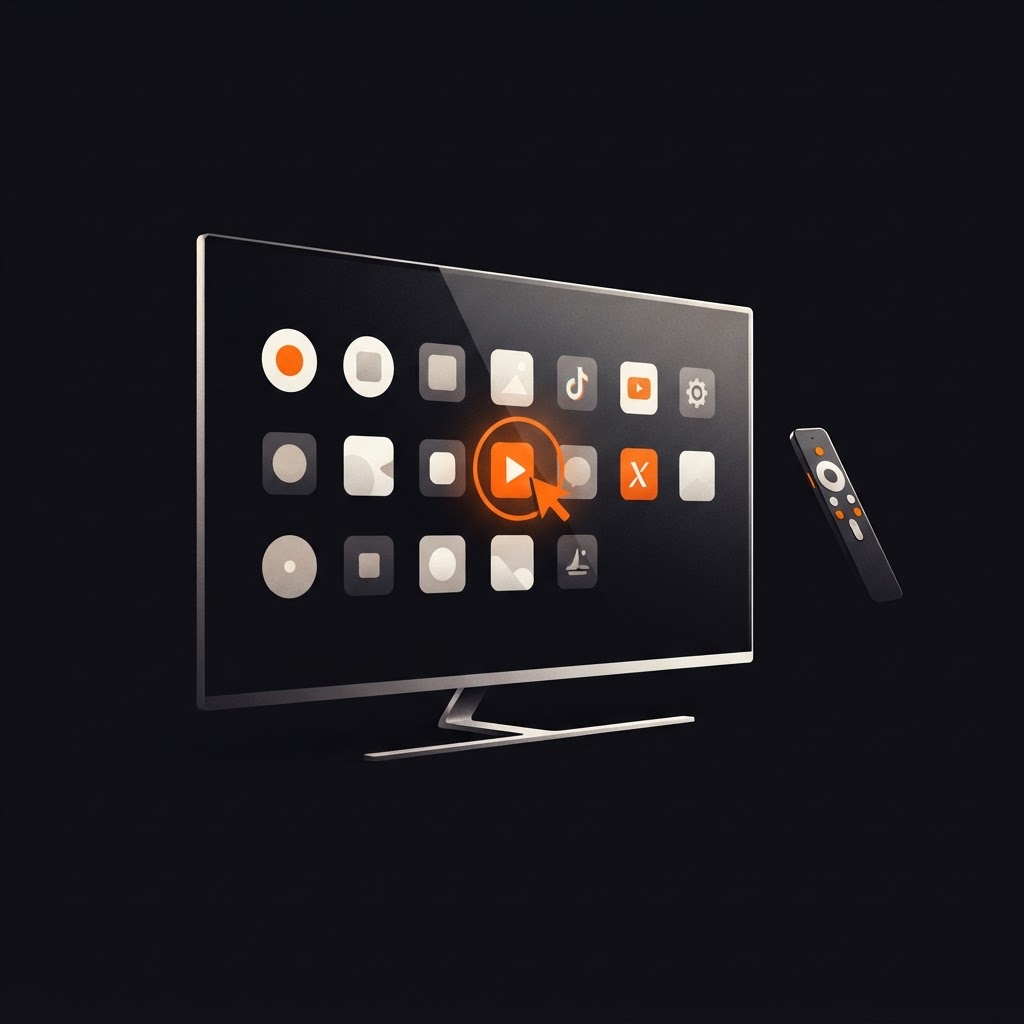
SS IPTV - Simple, Smart TV is published for Android phones and tablets by Play Souza Apps. That is the confirmed platform, and it is where this guide starts: the app runs on your phone, and the television gets the picture through casting.
On an LG set the path is therefore: install the app on Android, add your own playlist there, then cast supported content to a Chromecast device connected to the TV. The remote stays out of the typing.
What you need before you start
- An Android phone or tablet with the official app — the download page points at its Google Play listing
- Your own M3U playlist or list link, from a service you are licensed to use
- A Chromecast device on one of the TV's HDMI inputs
- The phone and the receiver on the same Wi-Fi network
The app contains no content of its own. A fresh install is empty until you add a playlist, and that is expected rather than a fault.
Step 1: Add your playlist in the app
Open SS IPTV on the phone, add a list, give it a short recognisable name, paste the list link and let the app load it. Loading usually takes seconds; when it finishes, the channels, films and series in your list appear as browsable collections.
Keep names short. You will pick between lists from the same screen later, and the lists you use most can be saved so they open first.
Step 2: Put the Chromecast on the LG TV
Plug the receiver into an HDMI input and finish its own setup on the TV. None of that involves SS IPTV; it is ordinary Chromecast setup.
Note which input you used and switch the television to it with the LG remote's input button. The receiver's idle screen should appear before you cast anything.
Step 3: Cast from the app
With the playlist open on the phone, use the cast control and choose the receiver. The television shows the content once the connection completes, and playback runs through that session — the phone becomes the remote rather than the screen.
Two conditions decide whether this works:
- both devices must be on the same network; a phone on mobile data will not see the receiver
- the content must be castable. Sources and formats vary, so something that plays on the phone may not hand over cleanly
If the receiver never appears
- 1Check both are on the same Wi-Fi network, not one on a guest network.
- 2Restart the app, then look again.
- 3Restart the Chromecast from its setup screen.
- 4Try a second Android device on the same network. If neither finds the receiver, the network or the receiver is the problem, not the app.
A similar name in a TV store is not this app
Searches for "SS IPTV" turn up more than one product, and instructions for one will not fit another. The product this site covers is published by Play Souza Apps on Google Play under the package name com.sssiptv.iptvfree. If a listing shows a different developer, it is a different application with its own setup flow, features and support address.
Check the developer name before installing anything, and check it again if a guide asks you to type a code onto a television screen. This app does not use that workflow: see adding a playlist in the app.
Where to go next
- Adding your playlist — the in-app flow end to end
- Playlist not loading — when the list never fills in
- How casting works — the same steps for any receiver
- M3U basics — if you are unsure what your provider sent
Frequently asked questions
Keep reading
SS IPTV on a Samsung TV: Android App, Then Cast
SS IPTV - Simple, Smart TV is an Android app. On a Samsung television you watch it by casting supported content from the phone to a Chromecast device. Here is the full path.
Adding an M3U Playlist in SS IPTV: In the App, No Code
SS IPTV - Simple, Smart TV loads your playlist inside the Android app: name the list, paste the M3U link, load it. No connection code and no upload page are involved.
SS IPTV EPG: How to Add the TV Guide (and Fix a Blank One)
Your playlist usually carries the guide data — not the app. What EPG is, how to turn it on, and how to fix an empty or offset schedule.