
SS IPTV Playlist Not Loading? Complete Troubleshooting Guide
A playlist that will not load is a link problem, a network problem, or a format problem. Identify which one before you change anything.
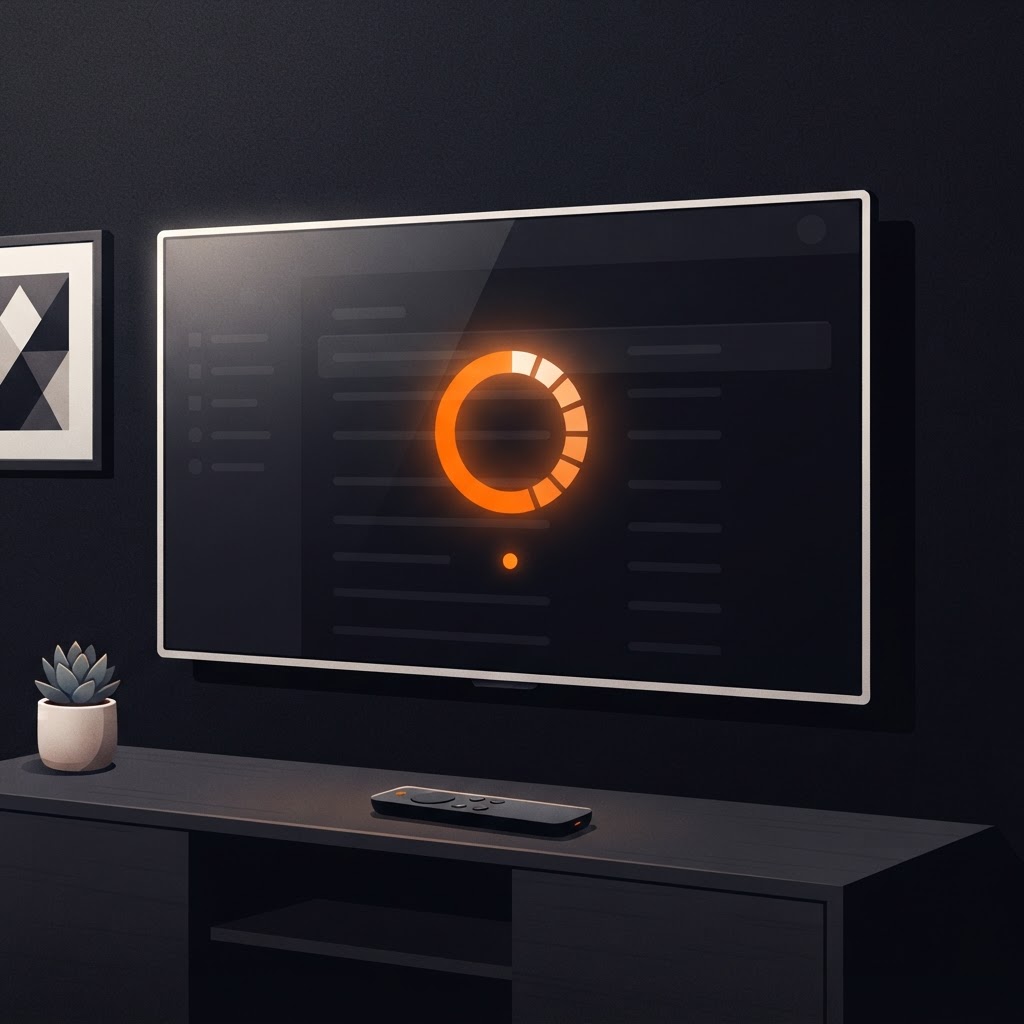
An SS IPTV playlist not loading looks like one problem and behaves like four. Before changing settings, spend two minutes working out which of these you actually have — it decides everything that follows.
- 1No list at all — the app never fetched the playlist.
- 2A list that appears then vanishes — the fetch succeeded but the result was rejected.
- 3A list that loads and will not play — the playlist is fine; the streams are not.
- 4A slow, partial list — the fetch is timing out part way through.
Each has a different cause, and the fixes do not overlap.
Step 1: Test the playlist outside the app
This single test splits the problem in half. Open the playlist link in a browser on your phone, on the same network as the television.
- The browser downloads a file or shows a playlist — the link is good. The problem is on the path to the TV.
- The browser shows an error, a login page, or an empty page — the link is dead or requires something the app cannot supply. Ask your provider for a current link.
- The browser is fine but the file is tiny — you may have copied a truncated or placeholder link.
Step 2: Rule out the network path
If your phone can fetch the playlist and the TV cannot, the television's route to the internet is the variable.
Practical checks:
- put the TV on Ethernet temporarily if you can
- switch the TV from 2.4 GHz to 5 GHz Wi-Fi, or the reverse if 5 GHz is weak at that distance
- restart the router once, then retry — DNS caches are a common culprit
- if the TV has a separate DNS setting, switch it to automatic
A television that loads apps happily but cannot fetch one specific host usually has a DNS or filtering problem. The home network guide goes deeper, including router settings worth changing.
Step 3: Check the playlist format
SS IPTV expects an M3U or M3U8 playlist. Files with other extensions, HTML pages that look like download links, or a text file with the wrong name will all fail to parse.
Three format problems appear repeatedly:
| Symptom | Likely format issue |
|---|---|
| List loads, entries are blank | File is HTML, not M3U (often a login page) |
| Only one channel appears | Truncated file or a link that returned an error page |
| Playlist rejected outright | Wrong extension or encoding |
If you downloaded the file yourself, open it in a text editor. A valid M3U starts with an extended header line and lists entries beginning with a stream marker. If it starts with HTML, you saved a web page, not a playlist.
Step 4: Re-enter the playlist cleanly
Half-fixed playlists cause confusing behaviour. Remove the current playlist and add it again inside the app, pasting the full link with no trailing spaces.
The upload workflow is in adding a playlist in the app. If the code itself is the problem, that has its own guide: when a list will not add.
Step 5: Separate playlist failure from stream failure
This is where most people misdiagnose. A playlist that loads a full channel list is doing its job. If selecting a channel shows a spinner or an error, the playlist was never the issue.
Signs that you have moved past the playlist stage:
- channel names appear as expected
- categories or groups are populated
- some channels play while others do not
That pattern points at the source, the stream format or the network. Go to fixing IPTV buffering, where the fixes are ordered by how often they work.
Step 6: Give the app a clean starting point
If none of the above isolates it, reset the app's state: close it completely, clear its cache if your platform offers that, and power-cycle the television. On most TVs the equivalent is uninstalling and reinstalling the app.
A short decision tree
- Browser cannot fetch it → ask your provider for a working link.
- Browser can fetch it, TV cannot → network or DNS, work through step 2.
- TV fetches it but the list is broken → format problem, step 3.
- List is fine, playback is not → stream or source problem, step 5.
Nine out of ten reports fit one of these four lines, and none of them requires reinstalling anything.
When it is genuinely the provider
Some failures are outside your control and worth escalating rather than debugging: an account that has lapsed, a link that was rotated without notice, a source that has stopped publishing. Those show up as a link that fails everywhere, including on a phone on mobile data.
Ask your provider three specific questions: is the playlist link current, does it have an expiry, and is there a limit on simultaneous connections? The answers resolve most "it used to work" cases immediately.
SS IPTV playlist not loading: the test that settles it
If you only do one thing from this page, do this: open the playlist link on a phone using mobile data rather than your home Wi-Fi.
That single test separates your network from your provider definitively.
- It fails on mobile data too — the link is dead or your account has lapsed. Nothing in your home is at fault, and no amount of router work will help.
- It works on mobile data but fails at home — your network path to that host is the problem, which is a DNS, filtering or connectivity question.
- It works everywhere but the TV still shows nothing — the playlist is fine and the television's fetch is failing, so re-check the cast step: the phone and the Chromecast need to be on the same network.
People spend hours reinstalling apps when this one test would have pointed them at their provider in ninety seconds.
A playlist that loads slowly is not broken
Large playlists with thousands of entries and a big guide file take a noticeable time to fetch and parse, especially on older televisions. If the list appears after ten or fifteen seconds but an app store search feels instant, that is normal behaviour rather than a fault.
What is not normal is a spinner that never resolves. That indicates a fetch that started and never completed, which is nearly always the network path or a timeout on the provider's side.
A playlist that will not load is rarely mysterious once you know which stage failed. Test the link, then the network, then the format — in that order, and the answer usually appears within a few minutes.
Frequently asked questions
Keep reading
Told to Enter a Connection Code? What to Do in SS IPTV
Connection-code instructions do not apply to SS IPTV - Simple, Smart TV: the list is added in the Android app. Seven checks that solve the real failures.
Fix IPTV Buffering Smart TV: 12 Proven Fixes
Buffering is a measurement problem before it is a settings problem. Here is how to test your connection properly, then work through twelve fixes.

What Is SS IPTV? The Complete Guide to Simple Smart IPTV
SS IPTV plays the M3U playlist you supply. Here is what the app does, what it does not do, and the three things you need before your first channel plays.